> ## Documentation Index
> Fetch the complete documentation index at: https://docs.atonom.ai/llms.txt
> Use this file to discover all available pages before exploring further.
# Inviting Users to Atonom
> How to invite and manage users in the Atonom platform for SAML authentication
This guide explains how to invite users to the Atonom platform so they can authenticate via SAML single sign-on (SSO).
***
### **Prerequisites**
Before inviting users, ensure that:
* You are logged into the Atonom platform as an Administrator.
* You have the email address of the user you'd like to invite.
***
### **1. Understanding User Invitation Flow**
For SAML authentication to work properly, users must have pending invitations in the Atonom system before they attempt to log in. This process ensures security and proper user provisioning within the Atonom platform.
⚠️ **Important**: Users will encounter a "No pending invite found" error if they try to log in via SAML without a pending invitation in Atonom.
📋 **Note**: After inviting users in Atonom, administrators must also assign them to the Atonom enterprise application in Microsoft Entra ID. See the [Entra Integration Guide](/SAML/entra) for details on user assignment in Entra ID.
***
### **2. Inviting Users in Atonom**
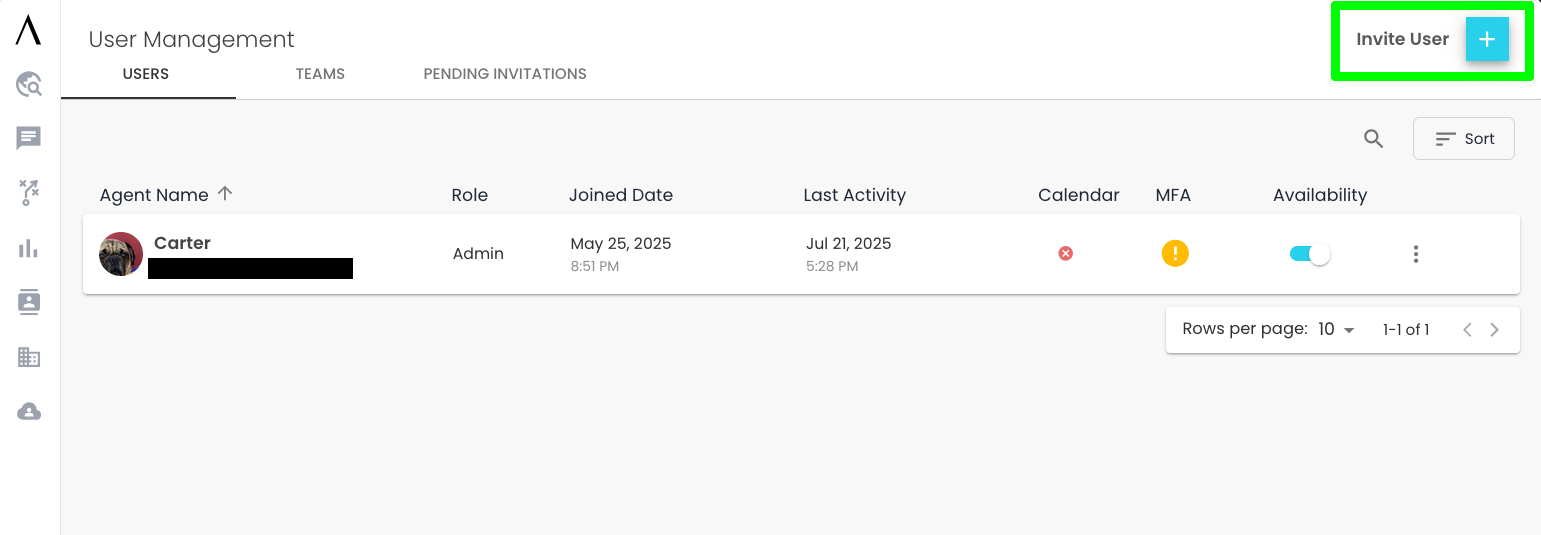
#### **Step 1: Access User Management**
1. Log into your Atonom dashboard at `https://app.getsignals.ai`
2. Navigate to `https://app.getsignals.ai/#/user_management/users`
3. Look for **Invite User** in the top right.
 #### **Step 2: Send Invitations**
1. Click **Invite User**
2. Enter the user's email address (this must match their Entra ID email)
3. Select the desired role/permissions for the user
4. Select the desired chat permissions for the user
#### **Step 2: Send Invitations**
1. Click **Invite User**
2. Enter the user's email address (this must match their Entra ID email)
3. Select the desired role/permissions for the user
4. Select the desired chat permissions for the user
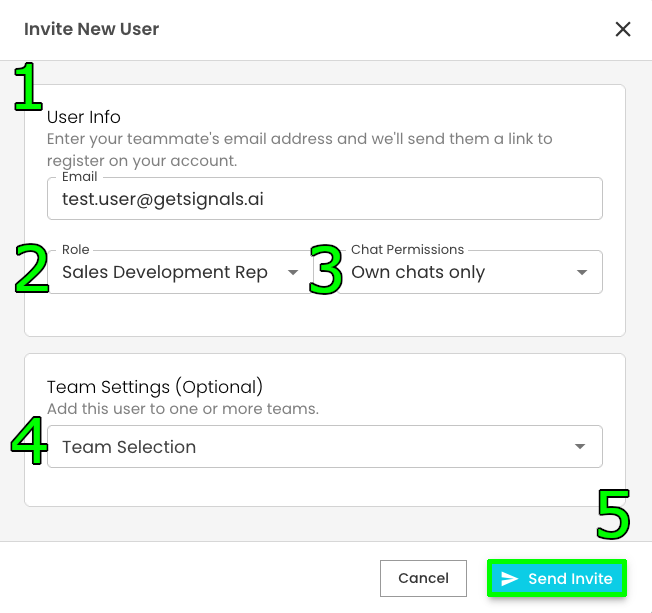 5. Click **Send Invite**
#### **Step 3: Verify Invitation Status**
* The user will appear in your user list with a **Pending** status
* The invitation email is sent to the user's email address
* Keep track of pending invitations for SAML assignment
***
### **3. User Login Process**
Once users have been invited in Atonom and assigned in Entra ID, they can log in via SAML:
#### **Option 1: Direct SAML Login**
Users can navigate directly to: `https://app.getsignals.ai/api/core/auth/azure/saml/login`
***
### **4. Troubleshooting User Invitations**
#### **Common Issues and Solutions**
**"No pending invite found" Error**
* Verify the user has a pending invitation in Atonom
* Check that the email address matches exactly between Atonom and Entra ID
* Ensure the invitation hasn't expired
* Confirm the user has been assigned to the Atonom application in Entra ID (see [Entra Integration Guide](/SAML/entra))
**User Cannot Access After Login**
* Verify the user's role and permissions in Atonom
* Check if additional onboarding steps are required
* Confirm the user is assigned to the correct groups/resources
**Invitation Email Not Received**
* Check spam/junk folders
* Verify the email address is correct
* Resend the invitation if necessary
* Contact your email administrator about delivery issues
**User Shows as "Pending" Indefinitely**
* The user may not have completed the invitation process
* Check if they've clicked the invitation link
* Verify they can access the SAML login flow
***
### **5. Next Steps**
After successfully inviting and configuring users:
1. **Test the complete flow** with a test user
2. **Plan regular reviews** of user access and roles
For additional support with user management, contact Atonom directly.
5. Click **Send Invite**
#### **Step 3: Verify Invitation Status**
* The user will appear in your user list with a **Pending** status
* The invitation email is sent to the user's email address
* Keep track of pending invitations for SAML assignment
***
### **3. User Login Process**
Once users have been invited in Atonom and assigned in Entra ID, they can log in via SAML:
#### **Option 1: Direct SAML Login**
Users can navigate directly to: `https://app.getsignals.ai/api/core/auth/azure/saml/login`
***
### **4. Troubleshooting User Invitations**
#### **Common Issues and Solutions**
**"No pending invite found" Error**
* Verify the user has a pending invitation in Atonom
* Check that the email address matches exactly between Atonom and Entra ID
* Ensure the invitation hasn't expired
* Confirm the user has been assigned to the Atonom application in Entra ID (see [Entra Integration Guide](/SAML/entra))
**User Cannot Access After Login**
* Verify the user's role and permissions in Atonom
* Check if additional onboarding steps are required
* Confirm the user is assigned to the correct groups/resources
**Invitation Email Not Received**
* Check spam/junk folders
* Verify the email address is correct
* Resend the invitation if necessary
* Contact your email administrator about delivery issues
**User Shows as "Pending" Indefinitely**
* The user may not have completed the invitation process
* Check if they've clicked the invitation link
* Verify they can access the SAML login flow
***
### **5. Next Steps**
After successfully inviting and configuring users:
1. **Test the complete flow** with a test user
2. **Plan regular reviews** of user access and roles
For additional support with user management, contact Atonom directly.