> ## Documentation Index
> Fetch the complete documentation index at: https://docs.atonom.ai/llms.txt
> Use this file to discover all available pages before exploring further.
# Okta Integration for Atonom
> Setting up SAML single sign-on (SSO) for the Atonom application using Okta as your identity provider.
This guide will walk you through the process of configuring SAML-based single sign-on (SSO) for the Atonom application within your Okta tenant. This process involves creating a new SAML application, configuring the necessary SAML parameters, and assigning users.
***
### **1. Create the SAML Application**
Since Atonom is not yet in the Okta Integration Network, you will need to create a new custom SAML application.
1. Sign in to your **Okta Admin Console**.
2. Navigate to **Applications** in the main menu.
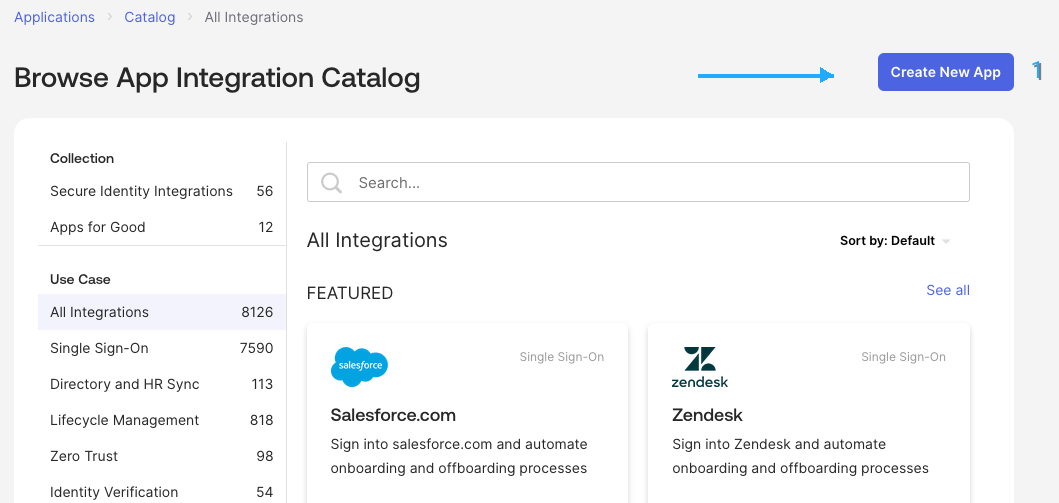
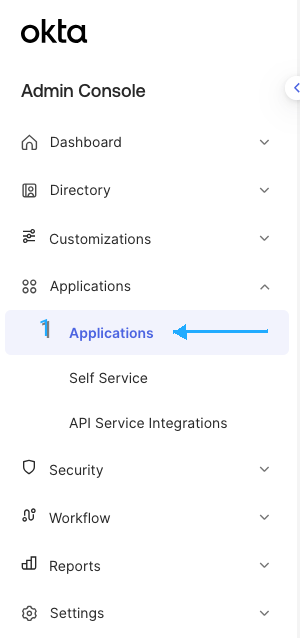 3. Click **Create App Integration**.
 4. Select **SAML 2.0** as the sign-in method.
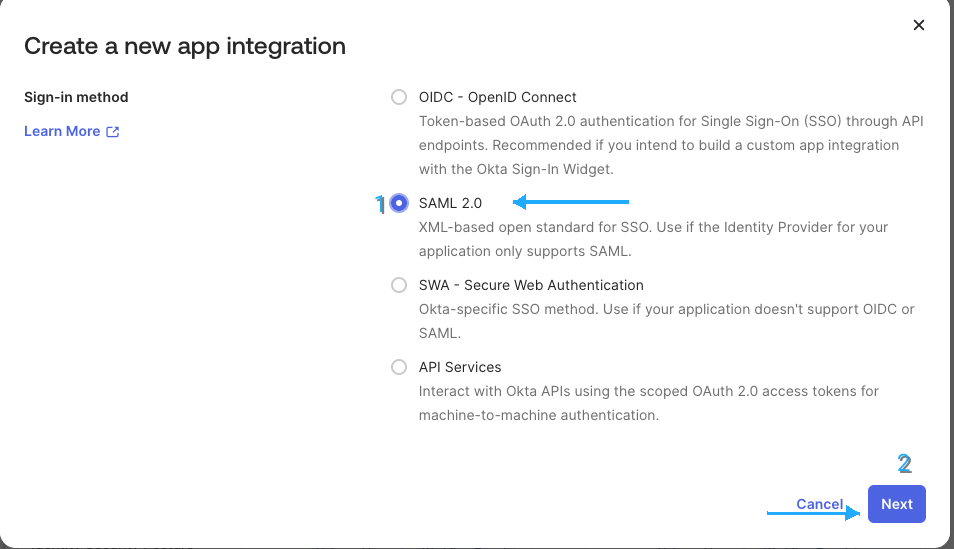 5. Click **Next** to proceed to the configuration.
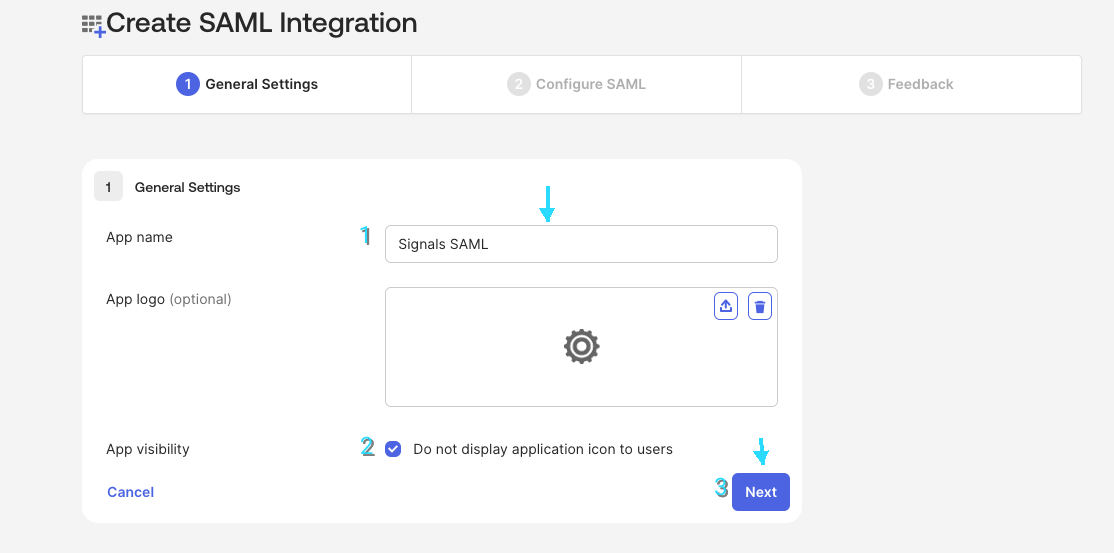
6. In the **General Settings** tab, fill out the form and click **Next**:
5. Click **Next** to proceed to the configuration.
6. In the **General Settings** tab, fill out the form and click **Next**:
 7. In the **Atonom** application, go to the bottom left and click on your profile picture. Click settings, Org Settings, Identity Management. **(This is placeholder text with no images until we have finalized the settings page ports)**.
8. Once there, copy the **Assertion Consumer Service (ACS) URL** and paste it into the **Single sign-on URL** field in the **General Settings** tab in Okta.
7. In the **Atonom** application, go to the bottom left and click on your profile picture. Click settings, Org Settings, Identity Management. **(This is placeholder text with no images until we have finalized the settings page ports)**.
8. Once there, copy the **Assertion Consumer Service (ACS) URL** and paste it into the **Single sign-on URL** field in the **General Settings** tab in Okta.
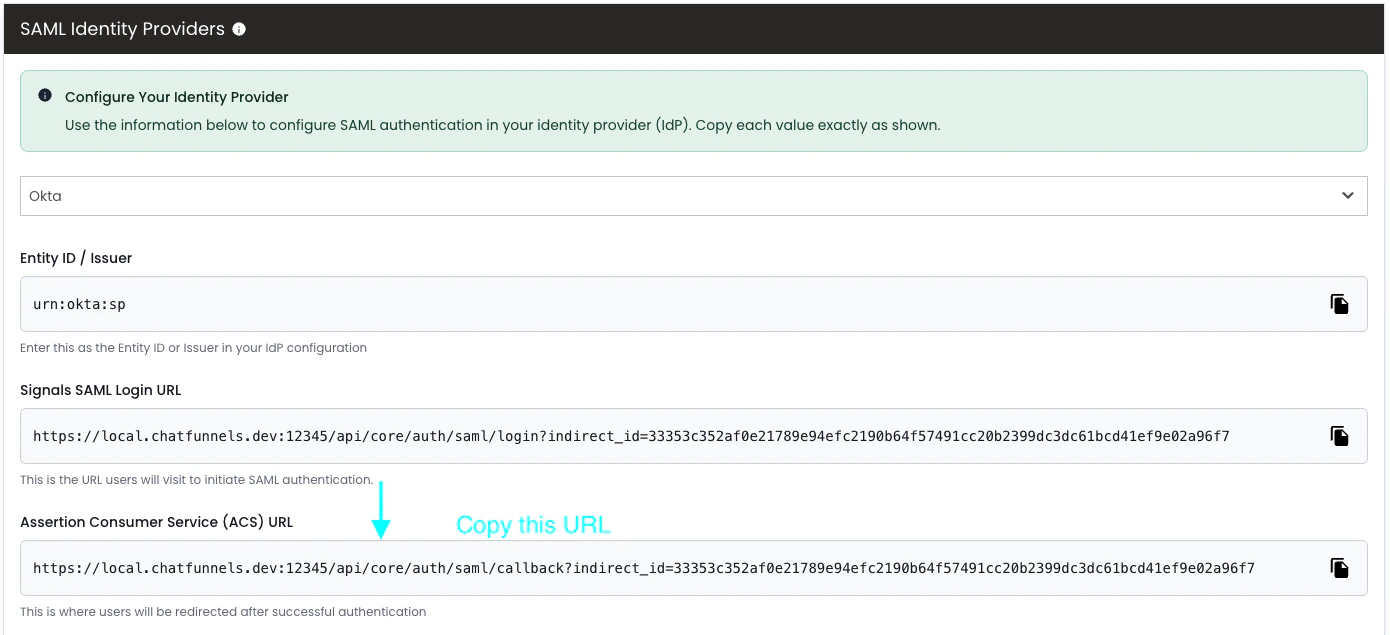 9. Next, copy the **Entity ID / Issuer** from the **Atonom** app and paste it into the **Audience URI (SP Entity ID)** field in the **General Settings** tab in Okta.
10. On **Okta**, for **Name ID Format**, select `Unspecified`. This uses Okta's default.
11. For **Application username**, select `Email`.
9. Next, copy the **Entity ID / Issuer** from the **Atonom** app and paste it into the **Audience URI (SP Entity ID)** field in the **General Settings** tab in Okta.
10. On **Okta**, for **Name ID Format**, select `Unspecified`. This uses Okta's default.
11. For **Application username**, select `Email`.
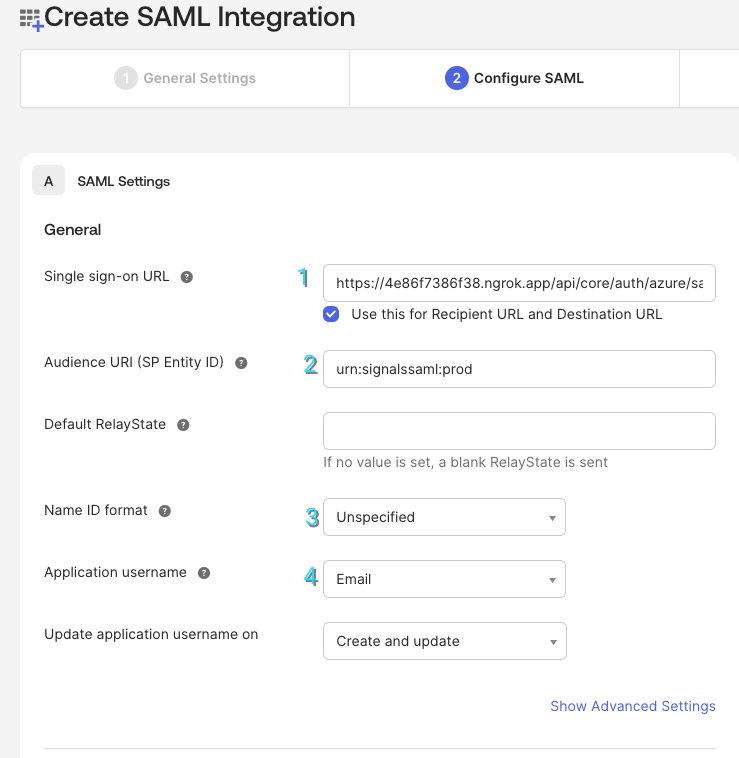 12. Scroll down and click **Next**.
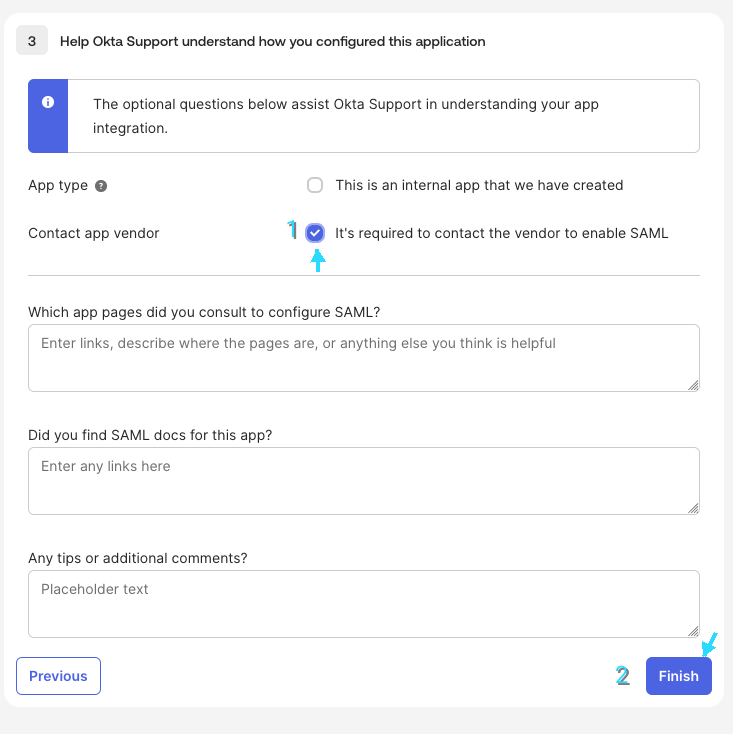
13. Now, check **Contact App Vendor** and click **Finish**.
12. Scroll down and click **Next**.
13. Now, check **Contact App Vendor** and click **Finish**.
 14. After clicking **Finish**, you will be redirected to the **Atonom** application in Okta. Copy the **Metadata URL** as shown below.
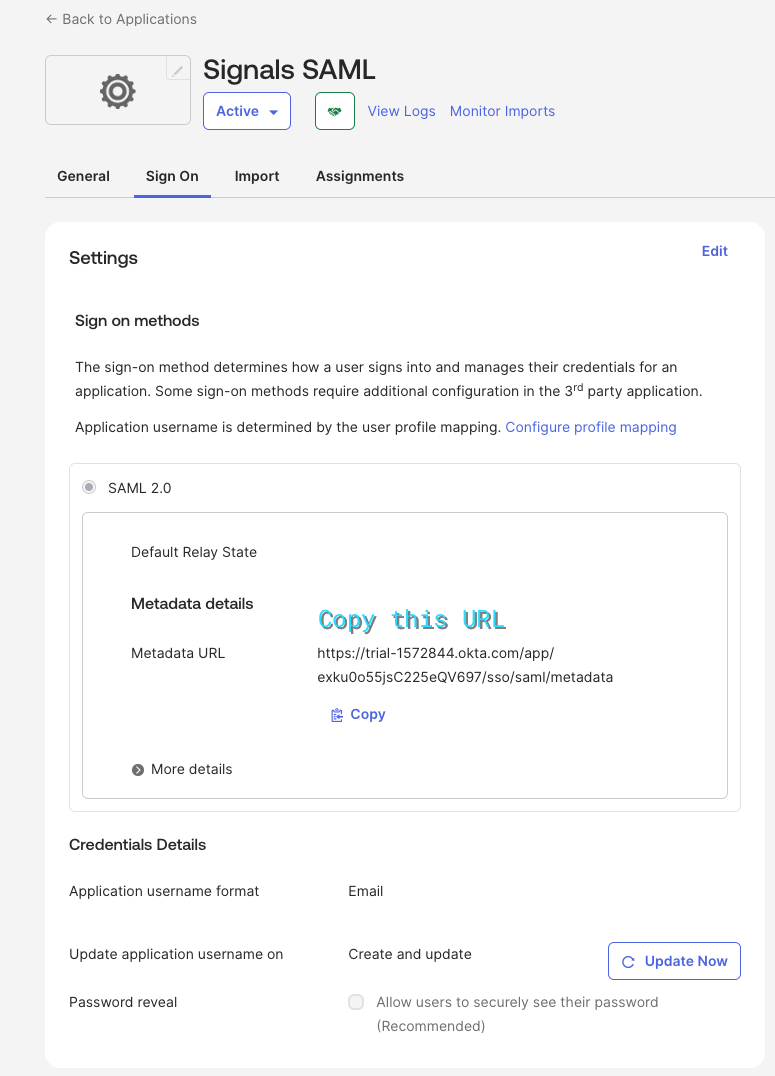 15. Now, go back to the **Atonom** application Identity Management page and paste the **Metadata URL** into the **Metadata URL** field.
***
15. Now, go back to the **Atonom** application Identity Management page and paste the **Metadata URL** into the **Metadata URL** field.
***