> ## Documentation Index
> Fetch the complete documentation index at: https://docs.atonom.ai/llms.txt
> Use this file to discover all available pages before exploring further.
# Calendar Setup
> Connect Google or Microsoft Calendar and configure meeting and availability settings in Atonom.
Connect your Google or Microsoft calendar in Atonom to enable meeting scheduling. After OAuth, configure **Meeting Settings** and **Availability Settings** so Atonom can find open times and book meetings on your calendar—for Cloud Employees, the API, and other booking flows.
For OAuth scopes, admin setup, and permission details, see [OAuth & Permissions](/integrations/calendar). For creating meeting types and how they work with booking, see [Meeting Types](/integrations/meeting-types). Microsoft tenants can optionally restrict who may connect a calendar using an [Entra security group](/SAML/entra#calendar-access-security-group-optional).
## Overview
Open **My Settings → My Calendar** in the Atonom app ([`/#/v2/my_settings/my_calendar`](https://app.getsignals.ai/#/v2/my_settings/my_calendar)).
From there you will:
1. Connect Google or Microsoft via OAuth
2. Configure meeting preferences (links, buffer time, lead time)
3. Set availability (timezone, selected calendars, weekly hours)
That is all that is required for meeting booking through Cloud Employees, the API, and other Atonom flows. Optionally, you can also enable self-service booking on your **profile page** (see below).
```mermaid theme={null}
flowchart LR
connect[ConnectCalendar] --> meeting[MeetingSettings]
meeting --> availability[AvailabilitySettings]
availability --> optionalProfile["ProfilePageBooking optional"]
```
***
## Connect your calendar
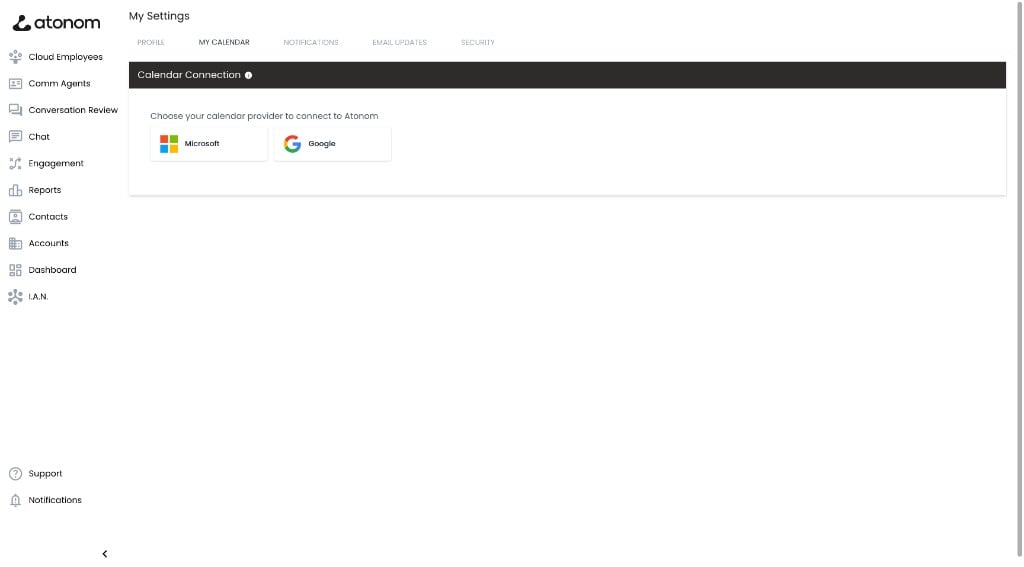
1. Go to **My Settings → My Calendar**
2. On the **Calendar Connection** card, choose **Microsoft** or **Google**
3. Complete the OAuth sign-in and grant the requested permissions
4. You are redirected back to **My Calendar**, where **Meeting Settings** and **Availability Settings** appear
 Calendar connection is per-user. Each person authorizes their own mailbox and calendar access.
On first connect, Atonom applies these defaults:
| Setting | Default |
| ------------------ | --------------------------------------------------------- |
| Weekly hours | Monday–Friday, 9:00 AM–5:00 PM |
| Timezone | Your company's chat timezone (falls back to UTC if unset) |
| Selected calendars | **All** calendars on the connected account |
You can change all of these in **Availability Settings** after connecting.
To remove a connection, use **Disconnect Calendar** at the top of the My Calendar page. This removes stored OAuth tokens from Atonom but does not revoke the app in Google or Microsoft.
***
## Post-connection setup checklist
Complete these steps after connecting your calendar:
1. Configure **Meeting Settings** and click **Save Settings**
2. Review **Availability Settings** (timezone, selected calendars, weekly hours) — changes save automatically
Enabling **Allow visitors to book a meeting with me** on **My Profile** is optional. It only controls self-service booking on your public profile page and is not required for Cloud Employees, the Schedule a Meeting API, or other booking flows.
***
## Meeting Settings
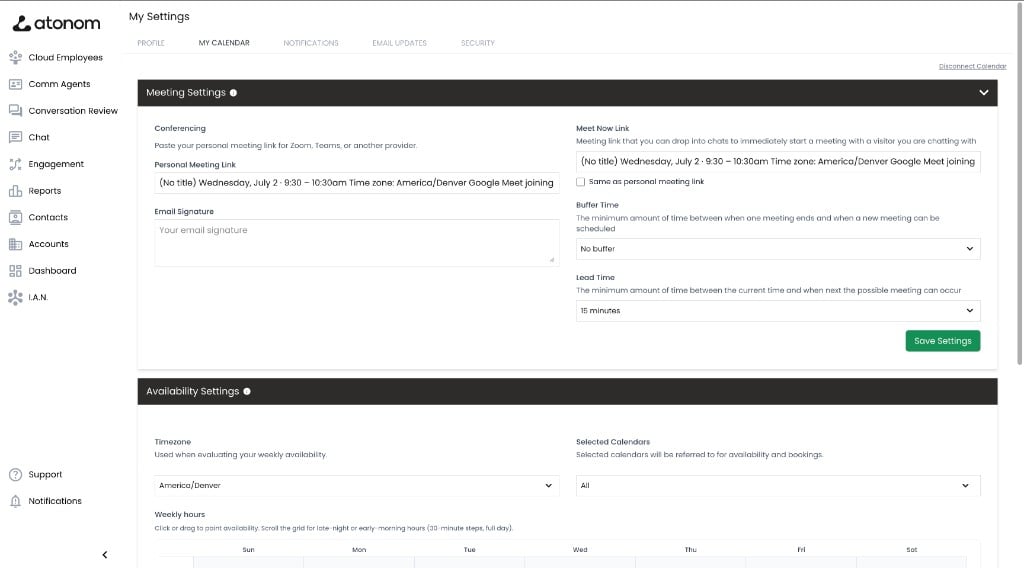
The **Meeting Settings** card controls how booked meetings behave and what information is included in invitations.
| Setting | Purpose |
| --------------------------------- | ---------------------------------------------------------------------------------------------- |
| **Personal Meeting Link** | Zoom, Teams, or other URL included in booked calendar invites |
| **Email Signature** | Text appended to meeting-related emails |
| **Meet Now Link** | Link you can drop into live chats to start a meeting with a visitor immediately |
| **Same as personal meeting link** | Copies your personal meeting link into the Meet Now field |
| **Buffer Time** | Minimum gap after a meeting ends before another can be scheduled (15 minutes–2 hours, or none) |
| **Lead Time** | Your personal minimum notice before a slot can be booked (15 minutes–48 hours, or none) |
Meeting settings do **not** auto-save. Click **Save Settings** after making changes.
Direct calendar integrations support two conferencing options on **My Calendar → Meeting Settings**:
* **Auto-generate links (recommended)** — creates native **Google Meet** or **Microsoft Teams** join links based on your connected calendar.
* **Use personal meeting link** — paste a Zoom, Teams, or other URL; it is included on booked calendar invites.
Zoom and GoToMeeting auto-generation on direct calendar is not supported; use a personal link for those providers.
Calendar connection is per-user. Each person authorizes their own mailbox and calendar access.
On first connect, Atonom applies these defaults:
| Setting | Default |
| ------------------ | --------------------------------------------------------- |
| Weekly hours | Monday–Friday, 9:00 AM–5:00 PM |
| Timezone | Your company's chat timezone (falls back to UTC if unset) |
| Selected calendars | **All** calendars on the connected account |
You can change all of these in **Availability Settings** after connecting.
To remove a connection, use **Disconnect Calendar** at the top of the My Calendar page. This removes stored OAuth tokens from Atonom but does not revoke the app in Google or Microsoft.
***
## Post-connection setup checklist
Complete these steps after connecting your calendar:
1. Configure **Meeting Settings** and click **Save Settings**
2. Review **Availability Settings** (timezone, selected calendars, weekly hours) — changes save automatically
Enabling **Allow visitors to book a meeting with me** on **My Profile** is optional. It only controls self-service booking on your public profile page and is not required for Cloud Employees, the Schedule a Meeting API, or other booking flows.
***
## Meeting Settings
The **Meeting Settings** card controls how booked meetings behave and what information is included in invitations.
| Setting | Purpose |
| --------------------------------- | ---------------------------------------------------------------------------------------------- |
| **Personal Meeting Link** | Zoom, Teams, or other URL included in booked calendar invites |
| **Email Signature** | Text appended to meeting-related emails |
| **Meet Now Link** | Link you can drop into live chats to start a meeting with a visitor immediately |
| **Same as personal meeting link** | Copies your personal meeting link into the Meet Now field |
| **Buffer Time** | Minimum gap after a meeting ends before another can be scheduled (15 minutes–2 hours, or none) |
| **Lead Time** | Your personal minimum notice before a slot can be booked (15 minutes–48 hours, or none) |
Meeting settings do **not** auto-save. Click **Save Settings** after making changes.
Direct calendar integrations support two conferencing options on **My Calendar → Meeting Settings**:
* **Auto-generate links (recommended)** — creates native **Google Meet** or **Microsoft Teams** join links based on your connected calendar.
* **Use personal meeting link** — paste a Zoom, Teams, or other URL; it is included on booked calendar invites.
Zoom and GoToMeeting auto-generation on direct calendar is not supported; use a personal link for those providers.
 ### Buffer and lead time options
**Buffer time:** No buffer, 15 min, 30 min, 45 min, 1 hour, 1 hr 15 min, 1 hr 30 min, 1 hr 45 min, 2 hours
**Lead time:** No lead time, 15 min, 30 min, 45 min, 1 hour, 1 hr 30 min, 2 hours, 3 hours, 4 hours, 5 hours, 6 hours, 7 hours, 8 hours, 12 hours, 24 hours, 48 hours
### How lead time is applied
Each **meeting type** in Atonom can also have its own lead time configured by an admin. When availability is calculated for a booking, Atonom uses the **longer** of the two values:
* **Personal lead time** from your Meeting Settings
* **Lead time** configured on the meeting type being booked
For example, if your personal lead time is 15 minutes but the meeting type requires 2 hours, visitors cannot book a slot starting within the next 2 hours. If your personal lead time is 24 hours but the meeting type requires 1 hour, the 24-hour personal setting applies.
This applies across booking flows—profile pages, Cloud Employees, chat, and the API—whenever a specific meeting type is used. See [Meeting Types](/integrations/meeting-types#scheduling-rules-at-book-time) for the full list of rules applied at book time.
***
## Availability Settings
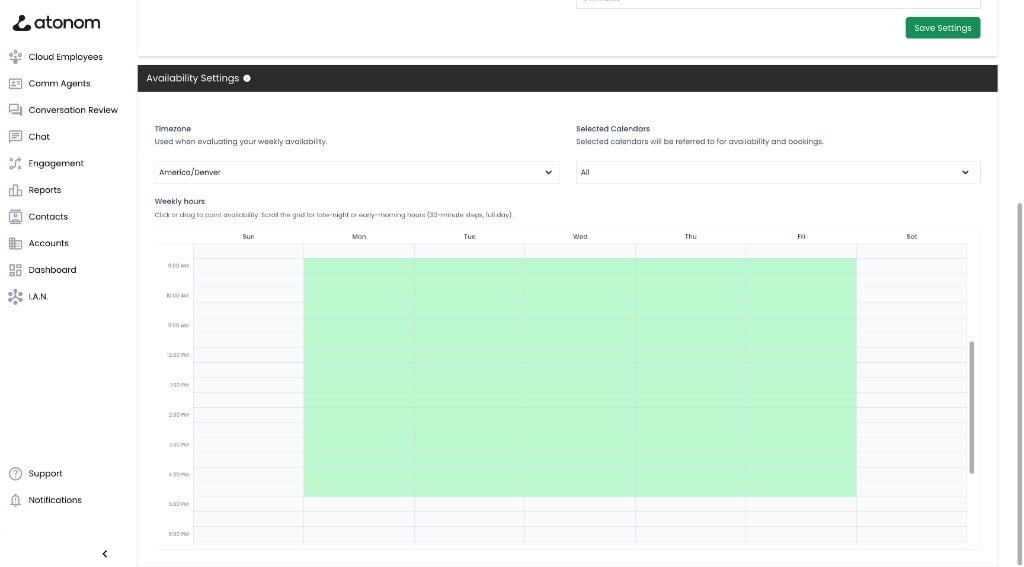
The **Availability Settings** card defines when you are bookable and which calendars Atonom checks for conflicts.
| Setting | Purpose | Save behavior |
| ---------------------- | ---------------------------------------------------------------------------------- | --------------------- |
| **Timezone** | Used when evaluating your weekly availability windows | Auto-save on change |
| **Selected Calendars** | Calendars checked for busy times; bookings are created on the selected calendar(s) | Auto-save on change |
| **Weekly hours** | Bookable time windows for each day of the week | Auto-save (debounced) |
Changes to availability settings save automatically. A brief **Saving...** indicator appears while updates are in progress.
### Buffer and lead time options
**Buffer time:** No buffer, 15 min, 30 min, 45 min, 1 hour, 1 hr 15 min, 1 hr 30 min, 1 hr 45 min, 2 hours
**Lead time:** No lead time, 15 min, 30 min, 45 min, 1 hour, 1 hr 30 min, 2 hours, 3 hours, 4 hours, 5 hours, 6 hours, 7 hours, 8 hours, 12 hours, 24 hours, 48 hours
### How lead time is applied
Each **meeting type** in Atonom can also have its own lead time configured by an admin. When availability is calculated for a booking, Atonom uses the **longer** of the two values:
* **Personal lead time** from your Meeting Settings
* **Lead time** configured on the meeting type being booked
For example, if your personal lead time is 15 minutes but the meeting type requires 2 hours, visitors cannot book a slot starting within the next 2 hours. If your personal lead time is 24 hours but the meeting type requires 1 hour, the 24-hour personal setting applies.
This applies across booking flows—profile pages, Cloud Employees, chat, and the API—whenever a specific meeting type is used. See [Meeting Types](/integrations/meeting-types#scheduling-rules-at-book-time) for the full list of rules applied at book time.
***
## Availability Settings
The **Availability Settings** card defines when you are bookable and which calendars Atonom checks for conflicts.
| Setting | Purpose | Save behavior |
| ---------------------- | ---------------------------------------------------------------------------------- | --------------------- |
| **Timezone** | Used when evaluating your weekly availability windows | Auto-save on change |
| **Selected Calendars** | Calendars checked for busy times; bookings are created on the selected calendar(s) | Auto-save on change |
| **Weekly hours** | Bookable time windows for each day of the week | Auto-save (debounced) |
Changes to availability settings save automatically. A brief **Saving...** indicator appears while updates are in progress.
 ### Timezone
Select the IANA timezone used to interpret your weekly hours grid (for example, `America/New_York` or `Europe/London`). Your painted availability windows are evaluated in this timezone.
### Selected calendars
After connecting, Atonom loads the calendars available on your Google or Microsoft account. Use the multiselect to choose which calendars to include.
* Select **All** to check every calendar on the account (default on first connect)
* Select individual calendars to limit availability checks and booking targets
**Shared Microsoft calendars** require the `Calendars.Read.Shared` scope. If a user selects a calendar shared with them (rather than one they own), availability checks can fail without this permission. See [OAuth & Permissions](/integrations/calendar#microsoft-calendar-outlook--office-365) for details.
If calendars fail to load, try reconnecting your account or confirm the OAuth scopes in the permissions guide.
### Weekly hours
Use the weekly hours grid to paint when you are available for meetings:
* **Click** or **click and drag** to mark 30-minute slots as available
* Scroll the grid for early-morning or late-night hours (full 24-hour day in 30-minute steps)
* Defaults to Monday–Friday, 9:00 AM–5:00 PM until you change them
***
## Profile page meeting booking (optional)
A **profile page** is a public page for an individual team member in your organization. Each user can have their own profile page with a shareable link, showing their name, photo, company branding, and optional actions such as **Chat with me** or meeting booking.
Profile pages are separate from Cloud Employee conversations. Visitors who open a profile page link interact directly with that person's page—not with a Cloud Employee.
### Allow visitors to book a meeting with me
If you want visitors to schedule meetings from your profile page:
1. Go to **My Settings → My Profile**
2. Enable **Enable my public profile page** (if not already on)
3. Enable **Allow visitors to book a meeting with me**
4. Configure which meeting types appear on your profile under **Agent Page Meetings** — see [Meeting Types](/integrations/meeting-types#profile-pages-and-meeting-types)
This toggle is disabled until a calendar is connected. When enabled, visitors who open your profile page link can pick a meeting type and book a time from your availability.
This setting applies **only** to booking on your profile page. It does not enable or disable other meeting booking flows, including:
* Cloud Employees with the meeting booking capability
* The [Schedule a Meeting API](/api-reference/schedule-meeting/create)
* Meetings booked on behalf of a user during live chat or voice conversations
You can connect your calendar and configure meeting/availability settings without turning this on. Leave it disabled if you do not want self-service booking on your public profile page.
***
## Troubleshooting
| Issue | What to check |
| -------------------------------------- | ----------------------------------------------------------------------------------------------------------------------------------------------------------- |
| Authorization errors during connect | OAuth client scopes and admin consent — see [OAuth & Permissions](/integrations/calendar) |
| Calendars not loading in the picker | Reconnect the calendar; verify Google Calendar API or Microsoft Graph permissions are granted |
| Shared calendar availability fails | Confirm `Calendars.Read.Shared` is granted for Microsoft accounts |
| Bookings fail or missing meeting links | Save **Meeting Settings** with a valid personal meeting link; confirm the target calendar is selected |
| Wrong available times shown | Verify **Timezone** and **Weekly hours** match your intended schedule |
| User cannot connect (Microsoft) | Tenant may restrict calendar access via an Entra security group — see [Calendar Access Security Group](/SAML/entra#calendar-access-security-group-optional) |
Contact [support@atonom.ai](mailto:support@atonom.ai) if you need assistance.
***
## What's next
Create meeting types and configure how they work with calendar booking
Google and Microsoft scopes, admin setup, and disconnect behavior
Book meetings programmatically via the Atonom API
Enable the meeting booking capability on a Cloud Employee
### Timezone
Select the IANA timezone used to interpret your weekly hours grid (for example, `America/New_York` or `Europe/London`). Your painted availability windows are evaluated in this timezone.
### Selected calendars
After connecting, Atonom loads the calendars available on your Google or Microsoft account. Use the multiselect to choose which calendars to include.
* Select **All** to check every calendar on the account (default on first connect)
* Select individual calendars to limit availability checks and booking targets
**Shared Microsoft calendars** require the `Calendars.Read.Shared` scope. If a user selects a calendar shared with them (rather than one they own), availability checks can fail without this permission. See [OAuth & Permissions](/integrations/calendar#microsoft-calendar-outlook--office-365) for details.
If calendars fail to load, try reconnecting your account or confirm the OAuth scopes in the permissions guide.
### Weekly hours
Use the weekly hours grid to paint when you are available for meetings:
* **Click** or **click and drag** to mark 30-minute slots as available
* Scroll the grid for early-morning or late-night hours (full 24-hour day in 30-minute steps)
* Defaults to Monday–Friday, 9:00 AM–5:00 PM until you change them
***
## Profile page meeting booking (optional)
A **profile page** is a public page for an individual team member in your organization. Each user can have their own profile page with a shareable link, showing their name, photo, company branding, and optional actions such as **Chat with me** or meeting booking.
Profile pages are separate from Cloud Employee conversations. Visitors who open a profile page link interact directly with that person's page—not with a Cloud Employee.
### Allow visitors to book a meeting with me
If you want visitors to schedule meetings from your profile page:
1. Go to **My Settings → My Profile**
2. Enable **Enable my public profile page** (if not already on)
3. Enable **Allow visitors to book a meeting with me**
4. Configure which meeting types appear on your profile under **Agent Page Meetings** — see [Meeting Types](/integrations/meeting-types#profile-pages-and-meeting-types)
This toggle is disabled until a calendar is connected. When enabled, visitors who open your profile page link can pick a meeting type and book a time from your availability.
This setting applies **only** to booking on your profile page. It does not enable or disable other meeting booking flows, including:
* Cloud Employees with the meeting booking capability
* The [Schedule a Meeting API](/api-reference/schedule-meeting/create)
* Meetings booked on behalf of a user during live chat or voice conversations
You can connect your calendar and configure meeting/availability settings without turning this on. Leave it disabled if you do not want self-service booking on your public profile page.
***
## Troubleshooting
| Issue | What to check |
| -------------------------------------- | ----------------------------------------------------------------------------------------------------------------------------------------------------------- |
| Authorization errors during connect | OAuth client scopes and admin consent — see [OAuth & Permissions](/integrations/calendar) |
| Calendars not loading in the picker | Reconnect the calendar; verify Google Calendar API or Microsoft Graph permissions are granted |
| Shared calendar availability fails | Confirm `Calendars.Read.Shared` is granted for Microsoft accounts |
| Bookings fail or missing meeting links | Save **Meeting Settings** with a valid personal meeting link; confirm the target calendar is selected |
| Wrong available times shown | Verify **Timezone** and **Weekly hours** match your intended schedule |
| User cannot connect (Microsoft) | Tenant may restrict calendar access via an Entra security group — see [Calendar Access Security Group](/SAML/entra#calendar-access-security-group-optional) |
Contact [support@atonom.ai](mailto:support@atonom.ai) if you need assistance.
***
## What's next
Create meeting types and configure how they work with calendar booking
Google and Microsoft scopes, admin setup, and disconnect behavior
Book meetings programmatically via the Atonom API
Enable the meeting booking capability on a Cloud Employee