

1. Create the Enterprise Application
Since Atonom is not yet in the main Entra App Gallery, you will first need to create a new non-gallery application.- Sign in to the Microsoft Entra admin center as at least a
Cloud Application Administrator. - Browse to Identity > Applications > Enterprise applications.
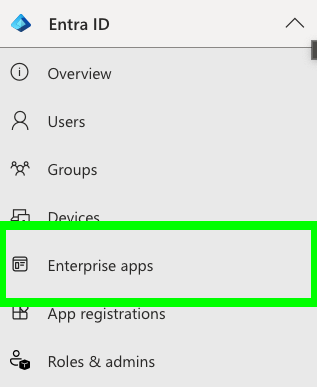
- Select + New application.

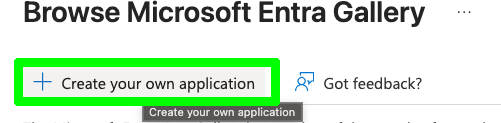
- On the “Browse Microsoft Entra Gallery” page, select the + Create your own application button at the top.
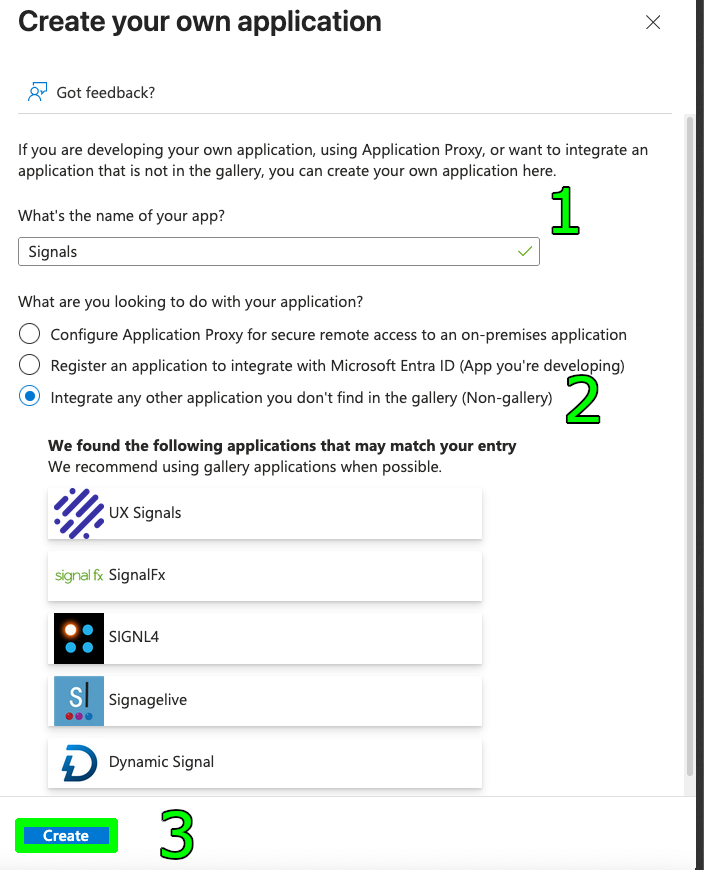
- A pane will appear on the right. In the “What’s the name of your app?” field, enter
Atonom. - Select the option Integrate any other application you don’t find in the gallery (Non-gallery).
- Click Create. Please wait a moment while the application is created and added to your tenant.
2. Get Atonom Service Provider Metadata
- Go to the Atonom Identity Management page and keep this open in a separate tab.
3. Configure SAML Single Sign-On
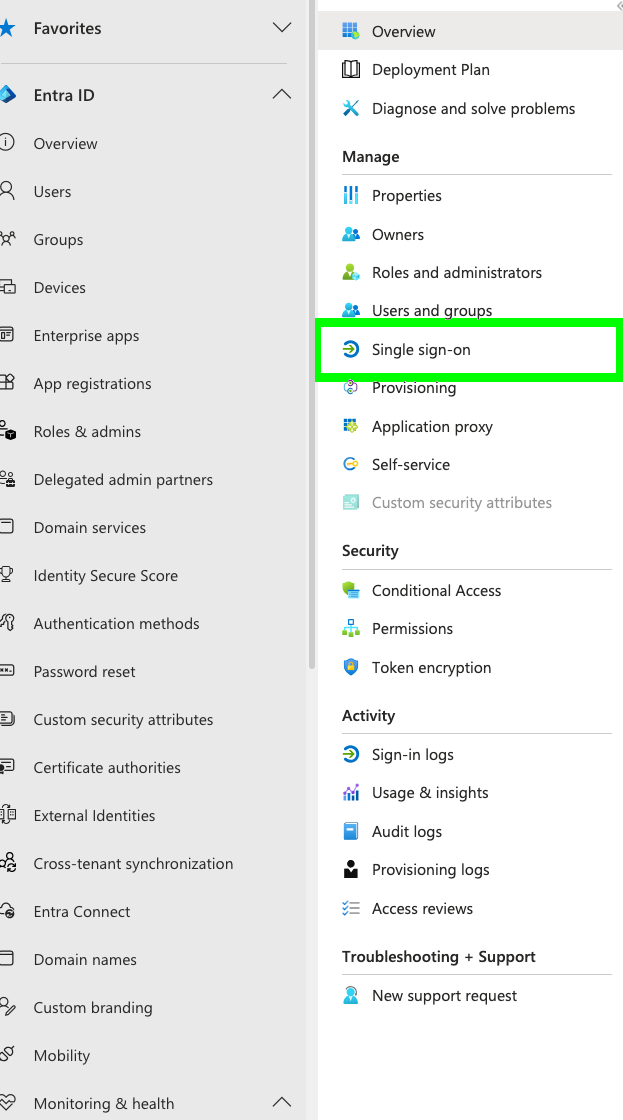
Once the Atonom application has been created, you will be taken to its overview page.- In the Manage section of the left menu, select Single sign-on.
- On the “Select a single sign-on method” page, choose the SAML tile. This will open the SSO configuration page.
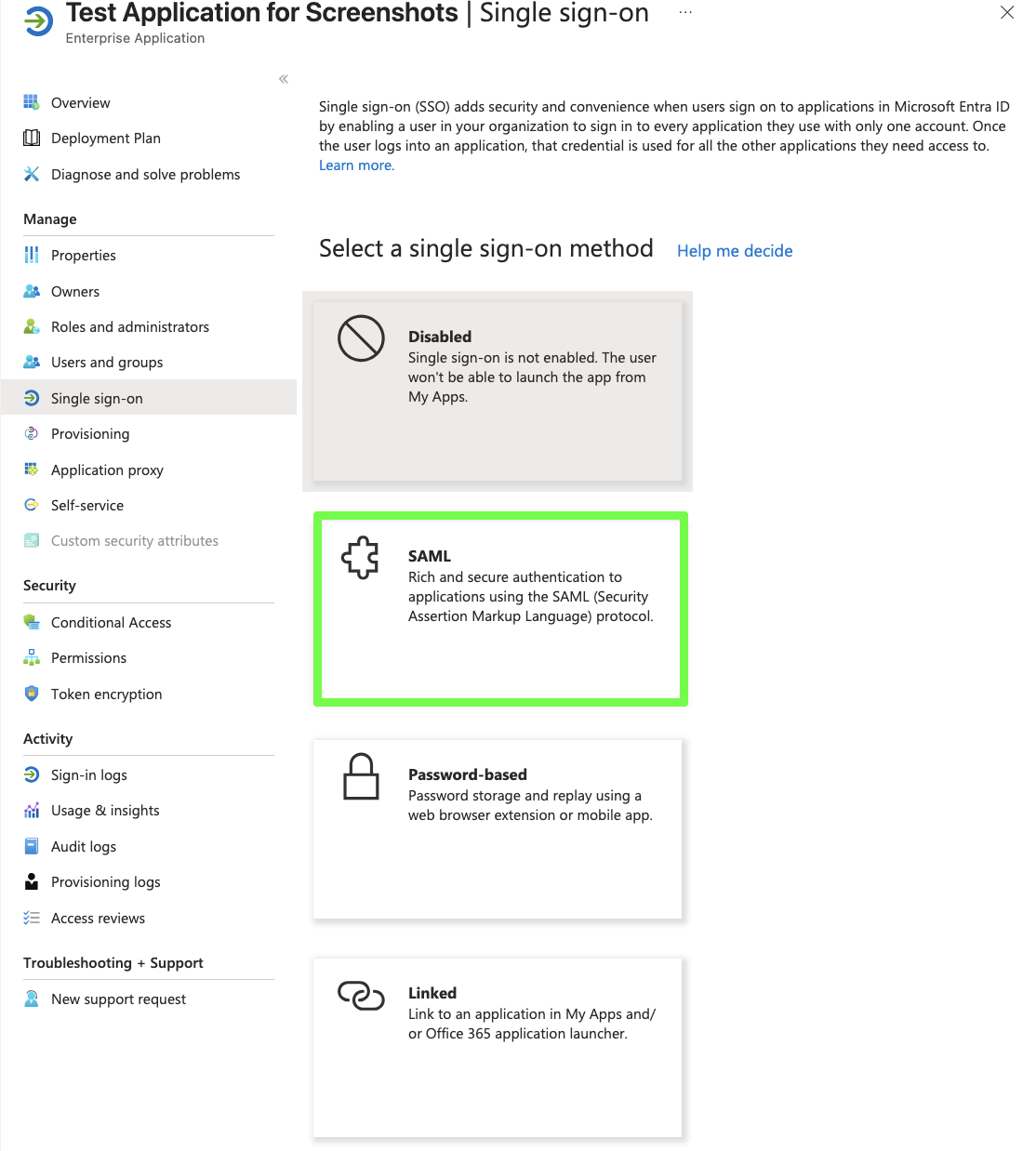
- Scroll down to the SAML Certificates section and click Download next to the Federation Metadata XML button.
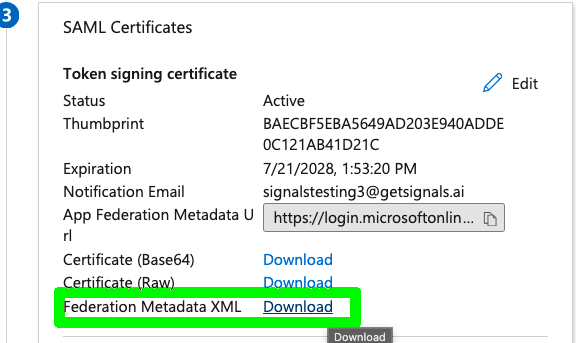
- Go to the Atonom Identity Management page and check “Upload XML Directly” then paste the contents of the Federation Metadata XML file into the text area labelled Metadata XML.
A. Basic SAML Configuration
These settings define where Atonom sends and receives SAML messages.- In the Basic SAML Configuration section, select the Edit (pencil) icon.
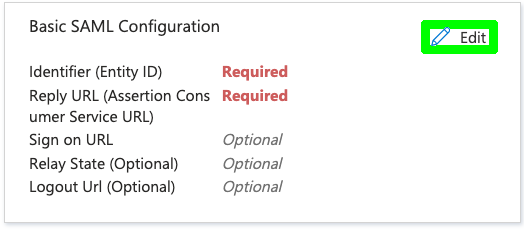
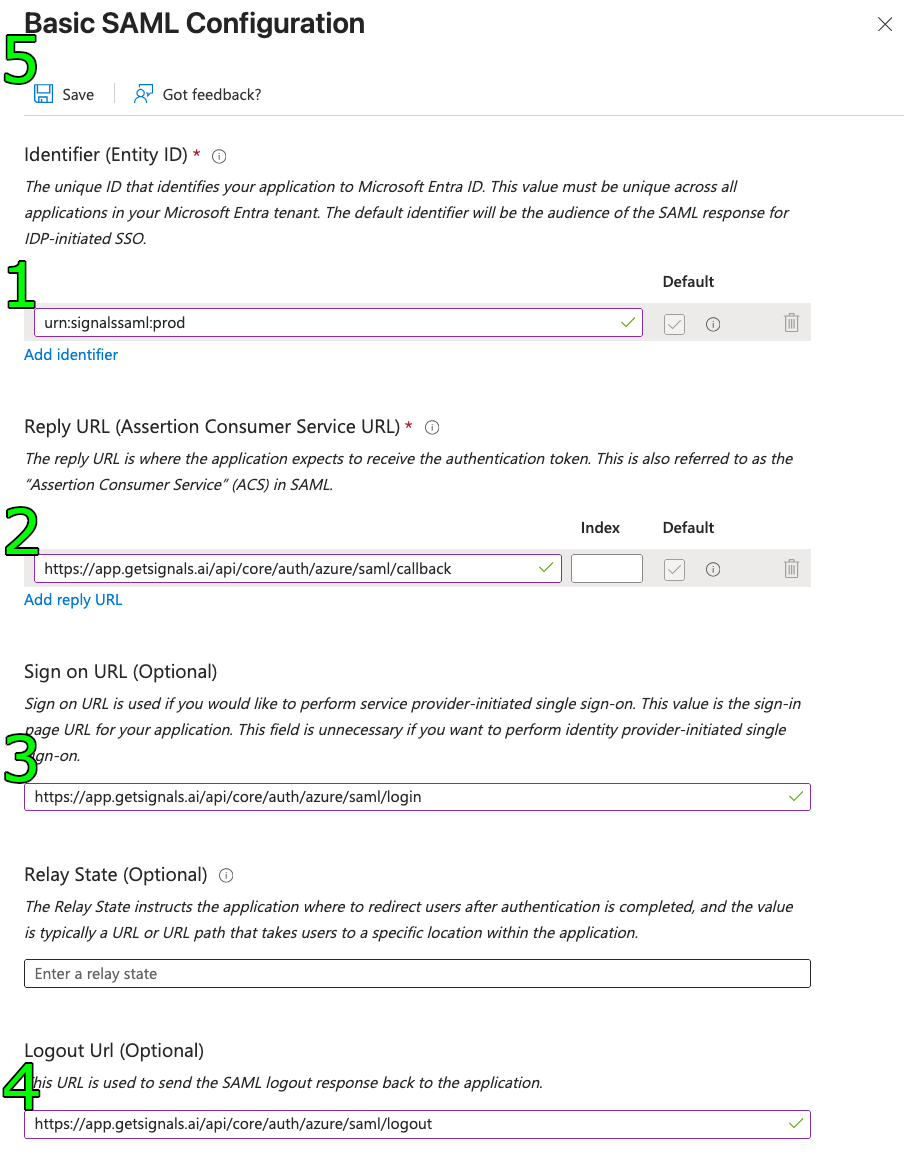
- Configure the following fields using values from Atonom Identity Management page:
- Identifier (Entity ID): Click Add identifier and enter the
Entity ID / Issuervalue from Atonom Identity Management page. - Reply URL (Assertion Consumer Service URL): Click Add reply URL and enter the
Assertion Consumer Service (ACS) URL. - Sign on URL: Enter the
Atonom SAML Login URLvalue.
- Identifier (Entity ID): Click Add identifier and enter the
- Select Save at the top of the pane.
B. SAML Certificates
Atonom automatically downloads and validates your Entra ID signing certificate from the federation metadata endpoint. No manual certificate upload is required on the Atonom side.- In the SAML Certificates section, ensure there is an active certificate
- Note the certificate details for troubleshooting purposes if needed
C. Configure User Attributes & Claims (Required)
⚠️ Important: The attribute names must match exactly what Atonom expects or authentication will fail.- In the Attributes & Claims section, select the Edit (pencil) icon.
- The
Unique User Identifier (Name ID)should be set touser.userprincipalnameby default, which is sufficient. - Ensure the following Additional claims exist with these exact names. If not, select + Add new claim to create them:
- Name:
http://schemas.xmlsoap.org/ws/2005/05/identity/claims/emailaddress| Source:Attribute| Source attribute:user.mail - Name:
http://schemas.xmlsoap.org/ws/2005/05/identity/claims/givenname| Source:Attribute| Source attribute:user.givenname - Name:
http://schemas.xmlsoap.org/ws/2005/05/identity/claims/surname| Source:Attribute| Source attribute:user.surname
- Name:
- Select Save.
4. Configure Atonom Environment
Calendar Access Security Group (Optional)
If you want to restrict who can connect calendars, create a dedicated security group in your Entra tenant and use that group’s ID in Atonom.- In Microsoft Entra ID, create a new Security group for calendar access.
- After the group is created, copy the group’s Object ID.
- Ensure the Atonom Entra app is given access to
user.groupsso Atonom can evaluate group membership. - In Atonom’s Identity Management page, paste that group ID into the Calendar Access input.
5. Assign Users and Groups
By default, no one in your organization can use the new application. You must assign specific users or user groups who should have access to Atonom.- Navigate to your Atonom enterprise application in Entra ID.
- In the Manage section of the left menu, select Users and groups.
- Select + Add user/group.
- Under Users, click “None Selected” and choose the appropriate users or groups from the list.
- Click Select and then Assign.
6. Test Single Sign-On
After configuration is complete and you have assigned users:- On the Identity Management page, copy the Atonom SAML Login URL and paste it into a new tab.
- Follow the prompts.
- If you have an invite pending to the email you’ve signed in with, and that email is assigned to the active directory, you should be redirected to the Atonom new user onboarding.
7. Available SAML Endpoints
For reference, you can always check Atonom SAML endpoints in the Identity Management page.8. Troubleshooting
If you encounter issues, check these common configuration problems:-
User Cannot Log In (Error
AADSTS50105): This error means the user trying to sign in has not been assigned to the application. Follow the steps in the Assign Users and Groups section to grant them access. - “No pending invite found” Error: Users must have a pending invite in the Atonom system. See the User Invitation Guide for details on inviting users to Atonom.
- Claim Mapping Errors: Verify that the user attribute claims in step 3C use the exact URIs specified. Incorrect claim names will cause authentication failures.
-
Entity ID Mismatch: Ensure the Identifier (Entity ID) in Entra ID exactly matches the
entityIDfrom your Atonom metadata endpoint. -
Redirect URI Mismatch: Ensure the Reply URL in Entra ID exactly matches the
AssertionConsumerServicelocation from your Atonom metadata. - Certificate Validation Errors: Atonom automatically downloads your Entra ID certificate. If issues persist, check that your Entra ID certificate is active and valid.
-
Logout Issues: Verify the Logout URL matches the
SingleLogoutServicelocation from your Atonom metadata. - Session Management: Atonom uses Redis for session storage. Logout requests will invalidate both the SAML session and the application session cookie.
9. Security Notes
- Atonom validates SAML assertions using your Entra ID’s signing certificate
- All SAML requests from Atonom are signed for security