

Overview
Open My Settings → My Calendar in the Atonom app (/#/v2/my_settings/my_calendar).
From there you will:
- Connect Google or Microsoft via OAuth
- Configure meeting preferences (links, buffer time, lead time)
- Set availability (timezone, selected calendars, weekly hours)
Connect your calendar
- Go to My Settings → My Calendar
- On the Calendar Connection card, choose Microsoft or Google
- Complete the OAuth sign-in and grant the requested permissions
- You are redirected back to My Calendar, where Meeting Settings and Availability Settings appear
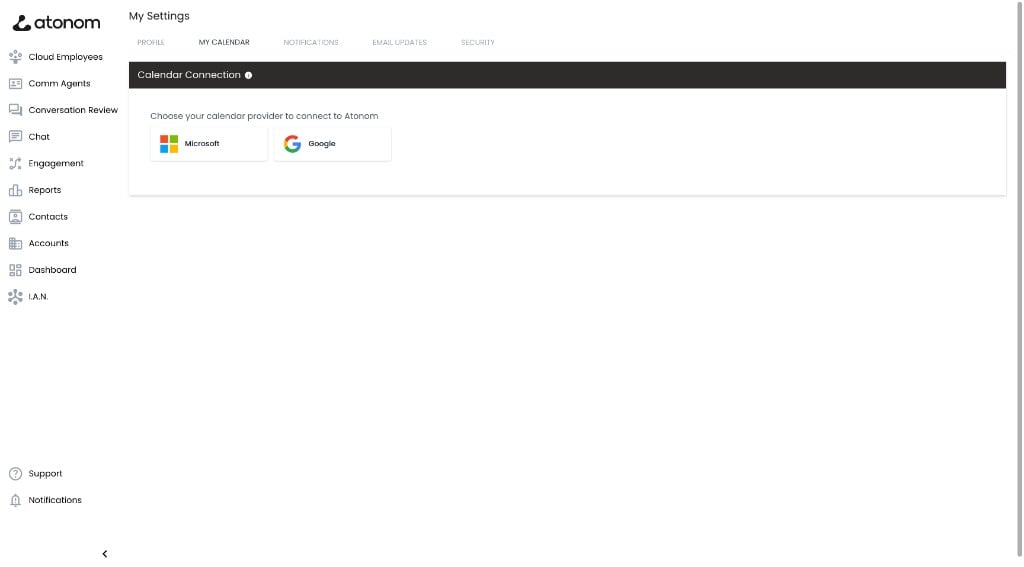
Calendar connection is per-user. Each person authorizes their own mailbox and calendar access.
You can change all of these in Availability Settings after connecting.
To remove a connection, use Disconnect Calendar at the top of the My Calendar page. This removes stored OAuth tokens from Atonom but does not revoke the app in Google or Microsoft.
Post-connection setup checklist
Complete these steps after connecting your calendar:
- Configure Meeting Settings and click Save Settings
- Review Availability Settings (timezone, selected calendars, weekly hours) — changes save automatically
Enabling Allow visitors to book a meeting with me on My Profile is optional. It only controls self-service booking on your public profile page and is not required for Cloud Employees, the Schedule a Meeting API, or other booking flows.
Meeting Settings
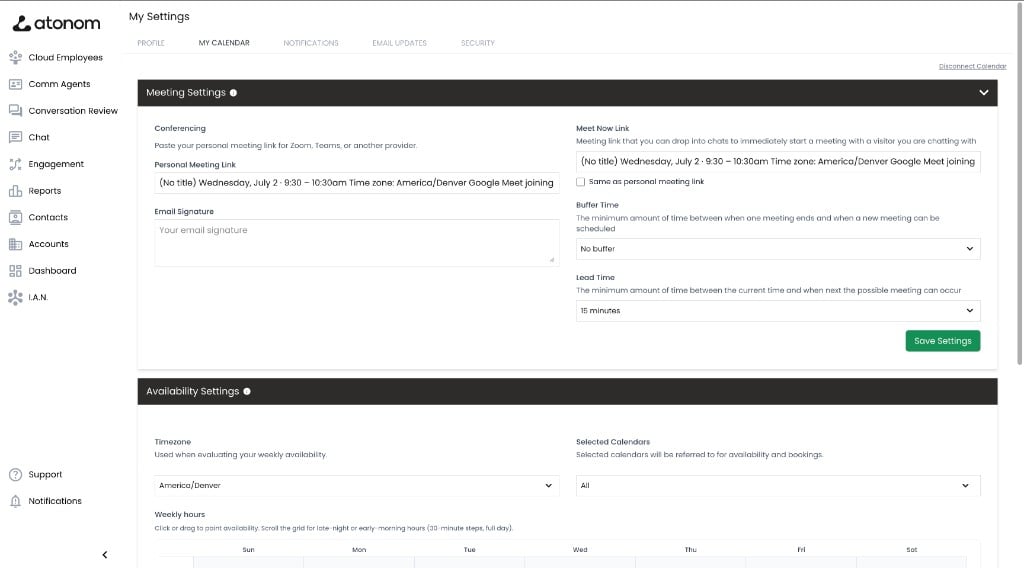
The Meeting Settings card controls how booked meetings behave and what information is included in invitations.
Direct calendar integrations support two conferencing options on My Calendar → Meeting Settings:
- Auto-generate links (recommended) — creates native Google Meet or Microsoft Teams join links based on your connected calendar.
- Use personal meeting link — paste a Zoom, Teams, or other URL; it is included on booked calendar invites.
Buffer and lead time options
Buffer time: No buffer, 15 min, 30 min, 45 min, 1 hour, 1 hr 15 min, 1 hr 30 min, 1 hr 45 min, 2 hours Lead time: No lead time, 15 min, 30 min, 45 min, 1 hour, 1 hr 30 min, 2 hours, 3 hours, 4 hours, 5 hours, 6 hours, 7 hours, 8 hours, 12 hours, 24 hours, 48 hoursHow lead time is applied
Each meeting type in Atonom can also have its own lead time configured by an admin. When availability is calculated for a booking, Atonom uses the longer of the two values:- Personal lead time from your Meeting Settings
- Lead time configured on the meeting type being booked
Availability Settings
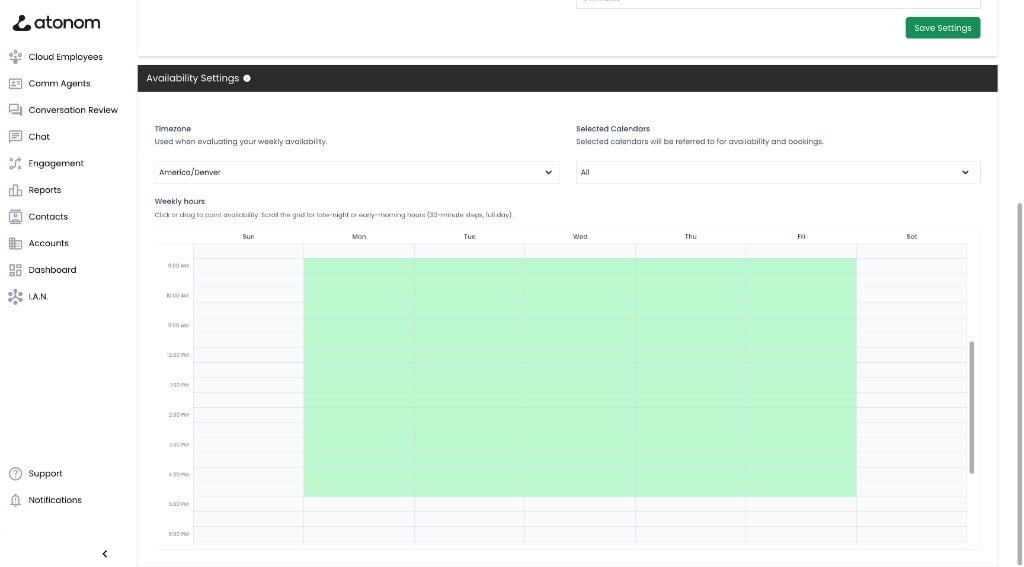
The Availability Settings card defines when you are bookable and which calendars Atonom checks for conflicts.
Changes to availability settings save automatically. A brief Saving… indicator appears while updates are in progress.
Timezone
Select the IANA timezone used to interpret your weekly hours grid (for example,America/New_York or Europe/London). Your painted availability windows are evaluated in this timezone.
Selected calendars
After connecting, Atonom loads the calendars available on your Google or Microsoft account. Use the multiselect to choose which calendars to include.- Select All to check every calendar on the account (default on first connect)
- Select individual calendars to limit availability checks and booking targets
Weekly hours
Use the weekly hours grid to paint when you are available for meetings:- Click or click and drag to mark 30-minute slots as available
- Scroll the grid for early-morning or late-night hours (full 24-hour day in 30-minute steps)
- Defaults to Monday–Friday, 9:00 AM–5:00 PM until you change them
Profile page meeting booking (optional)
A profile page is a public page for an individual team member in your organization. Each user can have their own profile page with a shareable link, showing their name, photo, company branding, and optional actions such as Chat with me or meeting booking. Profile pages are separate from Cloud Employee conversations. Visitors who open a profile page link interact directly with that person’s page—not with a Cloud Employee.Allow visitors to book a meeting with me
If you want visitors to schedule meetings from your profile page:- Go to My Settings → My Profile
- Enable Enable my public profile page (if not already on)
- Enable Allow visitors to book a meeting with me
- Configure which meeting types appear on your profile under Agent Page Meetings — see Meeting Types
This setting applies only to booking on your profile page. It does not enable or disable other meeting booking flows, including:
- Cloud Employees with the meeting booking capability
- The Schedule a Meeting API
- Meetings booked on behalf of a user during live chat or voice conversations
Troubleshooting
Contact support@atonom.ai if you need assistance.
What’s next
Meeting Types
Create meeting types and configure how they work with calendar booking
OAuth & Permissions
Google and Microsoft scopes, admin setup, and disconnect behavior
Schedule a Meeting API
Book meetings programmatically via the Atonom API
Build Your First Cloud Employee
Enable the meeting booking capability on a Cloud Employee